You do not have to read thousands of unread emails to clean your inbox. Search for the clutter, archive it in bulk, then set up filters or rules and unsubscribe so it does not refill. This guide uses the steps from the Gmail and Outlook help pages. Which mail to keep is my advice.
Should I archive or delete?
Archive first. Archived Gmail mail leaves the inbox but stays in your account, and Google’s search help lists in:archive to find it. In Outlook, archive moves a message to your Archive folder, and you can move it back. Deleted Gmail mail goes to Trash and is gone for good after 30 days, according to Google. Delete only what you are sure about, such as old promotions.
Step 1: Find the clutter with a search
In Gmail, click the search box and type an operator. Google’s search help lists these, among others:
is:unreadfor unread mailolder_than:1yfor mail older than a year (d, m or y)category:promotionsorcategory:updateshas:attachmentfrom:[email protected]-wordto leave out a word, andORto match either of two terms
You can combine them: is:unread older_than:1y finds unread mail more than a year old. In Outlook, sort the list by sender or date to spot the clutter.
Step 2: Select everything that matches
Google’s help page for deleting messages gives these steps on a computer:
- Open a view, such as Inbox, Promotions or All mail, or run your search.
- Tick the Select box at the top left. That selects the page.
- Click the link in the notice, which reads like “Select all 2,000 conversations in Inbox”. That extends the selection beyond the page.
- Click Archive, or the Delete icon.
Do this on a computer, not a phone. I would archive in several passes: first everything older than a year, then promotions, then updates. Look at the search results for a minute before each pass.
Outlook on the web has Archive and Sweep. Select a message, choose Sweep, and pick one of three options for that sender: delete all incoming email, keep only the latest email, or delete email older than 10 days. Sweep does not work in Junk Email, Drafts, Sent Items or Deleted Items, and Sweep rules run once a day.
Step 3: Stop it coming back
Archiving an inbox that refills in a week solves nothing. Set up automatic handling.
Gmail filters. Google’s filter page says: click Show search options in the search box, enter your criteria, click Create filter, choose what it should do, and click Create filter again. A filter can apply a label, archive, delete, star or forward. For forwarding, only new messages are affected.
Outlook rules. Microsoft’s rules page says rules can move messages to folders, delete them, or change their importance. In Outlook on the web, go to Settings > Mail > Rules > Add new rule, name it, choose a condition and an action, and save. Rules apply to incoming messages by default, not to existing ones. The page also says new Outlook does not support rules for third party accounts such as Gmail, Yahoo or iCloud.
My suggestion: make one filter or rule for each sender that sends you more than a few messages a week and that you rarely open.
Step 4: Unsubscribe or block
For newsletters you no longer read, use the unsubscribe link in the message. Google’s block page makes the same split: for newsletters you do not want to block, unsubscribe instead. To block a sender in Gmail, open a message, click More next to Reply, and choose Block. Their future mail goes to Spam. For spam or phishing, report it rather than just blocking.
Step 5: Keep it clean
Pick fixed times to check email, and process each message once: reply, archive, or put the task on your list. My post on how to stop email overload and the list of 14 tips to get a grip on your email cover the habits. If you have more than one account to tame, see how to manage several email accounts. If you put off the replies, see why do I put off answering email. If you wonder whether an assistant could do some of this, read is an AI email assistant worth it.
Want more?
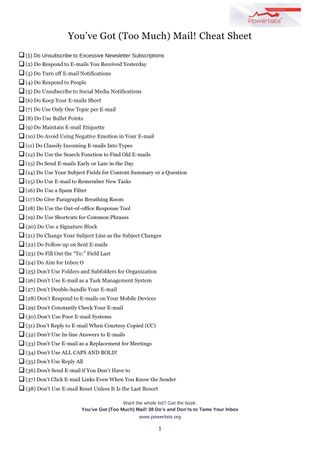
The book has 38 do’s and don’ts for taming your inbox, and the free cheat sheet gives you the short version.
You’ve Got (Too Much) Mail! 38 Do’s and Don’ts to Tame Your Inbox

Get the free You’ve Got Too Much Mail cheat sheet
Frequently asked questions
Should I archive or delete old emails?
Archive first. Archived Gmail mail leaves the inbox but stays in your account, while deleted mail goes to Trash and is gone for good after 30 days, according to Google.
How do I find old unread emails in Gmail?
Type an operator in the search box, such as is:unread older_than:1y, which finds unread mail more than a year old.
How do I select all emails, not just one page?
On a computer, tick the Select box, then click the link in the notice that reads like Select all 2,000 conversations in Inbox. Then click Archive or Delete.
How do I stop the inbox from filling up again?
Set up Gmail filters or Outlook rules, and unsubscribe from newsletters you no longer read. My suggestion is one filter or rule for each sender that sends more than a few messages a week and that you rarely open.